Your whole desk.
One key.
Snapping apps move one window. TradeStage opens and places every chart, DOM and app, on every screen.
Not a snapping app.
Snapping apps are good at one window. A trading day starts with ten of them, across three screens, and half aren't open yet.
You open each app and chart yourself.
Opens what's missing: your apps, and charts by ticker.
You move every window, one at a time.
Places every window on every screen at once.
Unplug a monitor and the desk falls apart.
Puts the windows back when the monitor returns.
One arrangement for every setup.
Each setup remembers its monitors, and waits until they're back.
Every morning, the same five minutes.
Every morning, ⌃⌥⌘2
At the close, you shut it all down by hand.
Done closes the charts and quits the platforms.
Every setup, one click away.
Click TradeStage in the menu bar and your setups are there. Each one is a whole desk: which screens, which charts and apps, and exactly where. Click one, or press ⌃⌥⌘1 or 2 from anywhere.
- Tied to its monitors. A setup saved on the full desk waits, greyed, while you work on the laptop alone, and says which monitors to plug back in.
- Opens what is missing. Apps, charts and websites that aren't open yet are launched and put in place.
Close the day. Open it tomorrow.
When the session ends, click Done in the menu bar. TradeStage closes your chart windows and quits your trading platforms. Next morning, Start day opens your setup again, every window in its zone.
- Asks first. The first click shows what it found, like ATAS X and three charts. The second click closes them.
- Your platform still gets its say. Platforms quit the normal way, so one with an open position or an unsaved workspace still asks you before it goes.
- Leaves your browser alone. Only the chart windows close. Normal browser windows and their tabs stay open, and Safari is never touched.
- Tomorrow starts clean. Start day opens your saved setup, not whatever was on screen when you clicked Done.
Your desk, under the pointer.
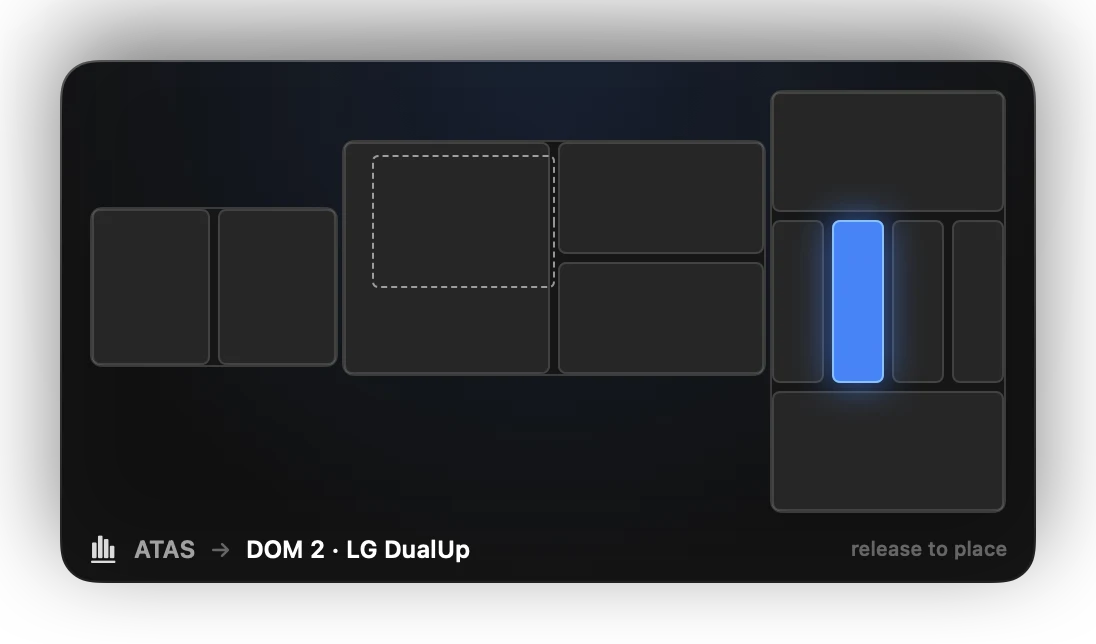
Hold right ⌥ on its own. Every screen and every zone you made appears right where the pointer is. Nudge onto a zone, on any monitor, and it lights on the real screen too. Let go, and the window is there.
- Inches, not monitors. The pointer barely moves, even for the far screen.
- Changed your mind? ⌃⌥Z undoes any move TradeStage made, a whole setup included.
Any window to any zone.
Press ⌥G and the front window's screen appears in miniature with your zones on it. Point at a zone and the real screen shows where it will land. Click, and it's there. Another screen is one tap away in the same panel.
- Your zones or a plain grid. 2 × 2, 3 × 2, 4 × 2 or 3 × 3 per screen, or the zones you designed.
- Numbers work too. Press 1 to 9 to send the window to that zone.

Type a ticker. It opens where it belongs.
Press ⌥C, type NQ1!, pick a screen and a zone. A clean TradingView chart opens straight into place, with no tabs and no dragging.
- Pinned tickers. The symbols you open every day sit one click away.
- Span zones. Hold ⇧ and click to give one chart two zones.

Everything else on the desk.
The parts that keep a trading desk running, day after day.
- The Studio
- Drag apps, charts and windows onto a map of your monitors to build a setup.
- Auto-heal
- Unplug a monitor and plug it back in. The windows go home.
- Undo a whole setup
- ⌃⌥Z puts back the last setup TradeStage placed, every window at once.
- Desk snapshot
- ⌃⌥S saves a picture of every screen, one folder per day, for your journal.
- Backup
- Export your setups to one file and bring them to a new Mac.
- The menu bar
- Your setups, Start day and Done, one click from the top of the screen.
Made for the apps on a trader's desk: TradingView on the web or desktop, ATAS X, Bookmap, thinkorswim, Trader Workstation, and any other Mac window.
Try it before the bell.
The free trial opens at launch.
- For Mac, macOS 14 or later
- Needs Accessibility access to move windows
- Charts open in Chrome, Brave, Edge or Vivaldi, or in Safari through a TradingView web app (macOS 14+)
- Your setups stay on your Mac
Questions.
Does TradeStage trade or connect to my broker?
No. It only arranges windows. It never sees your orders, accounts or market data.
Why does it ask for Accessibility access?
macOS only lets an app move and resize other apps' windows with your permission. You grant it once in System Settings, under Privacy & Security.
Which screens does it work with?
Any mix: the built-in display, external monitors, tall screens like the DualUp, and ultrawides. There are two setups, each tied to the monitors it was saved on: unplug them and it waits, greyed, until they're back.
What happens when I unplug a monitor?
Your windows move to the screens that are left. When the monitor comes back, auto-heal puts them where they were.
Where do charts from the chart launcher open?
As clean TradingView chart windows in Chrome, Brave, Edge or Vivaldi, placed in the zone you picked. On Safari, save TradingView as a web app once (Safari › File › Add to Dock) and charts open there instead.
Which trading platforms does it work with?
Platforms that run natively on the Mac. We've tested it with TradingView Desktop, ATAS X, thinkorswim and Trader Workstation. Windows platforms running in Parallels or over remote desktop show up as one big window: TradeStage can place that window, not the charts inside it.
Can it move a chart I put in full screen?
On the screen you're looking at, yes: it takes the chart out of full screen and puts it in its zone. A full-screen chart you've swiped away from sits in its own Space, out of reach of other apps, so TradeStage names it instead of opening a second copy. For a big chart, Focus (⌃⌥F) fills the screen and puts it back.
Why isn't it on the Mac App Store?
Apps there can't control other apps' windows the way TradeStage needs to, so it's sold directly here.